Rendering Engine components
This page describes the parameters and commands that is used for controlling the video mixer, audio mixer, HTML renderers and media players in the Ateliere Live Rendering Engine. This topic is closely related to this page on how to configure the rendering engine at startup.
Control command protocol
All commands to the Ateliere Live Rendering Engine are sent as human readable JSON objects and are listed below.
Each subsystem of the rendering engine has their own set of parameters and commands, and can be reached using:
/videofor the video mixer/audiofor the audio mixer (if using the built-in mixer)/ndi_audiofor the NDI audio mixer/htmlfor the html renderer instances/mediafor the media playback instances

Video mixer resources
Background
The video mixer is built as a tree graph of processing nodes, please see this page for further information on the video mixer node graph. The names of the nodes defined in the node graph are used as part of the resources: /video/nodes/{node_name} and they all have the parameter type which describes which type of video node it is.
There are 10 different node types.
- The
Transitionnode is used to pick which input slots to use for the program and preview output. The node also supports making transitions between the program and preview. - The
Selectnode simply forwards one of the available sources to its output. - The
Alpha combinenode is used to pick two input slots (or the same input slot) to copy the color from one input and combine it with some information from the other input to form the alpha. The color will just be copied from the color input frame, but there are several modes that can be used to produce the alpha channel in the output frame in different ways. This is known as “key & fill” in broadcasting. - The
Alpha overnode is used to perform an “Alpha Over” operation, that is to put the overlay video stream on top of the background video stream, and let the background be seen through the overlay depending on the alpha of the overlay. The node also features fading the graphics in and out by multiplying the alpha channel by a constant factor. - The
Transformnode takes one input stream and transforms it (scaling and translating) to one output stream. - The
Chroma Keynode takes one input stream, and by setting appropriate parameters for the keying, it will remove areas with the key color from the incoming video stream both affecting the alpha and color channels - The
Fade to blacknode takes one input stream, which it can fade to or from black gradually, and then outputs that stream. - The
Outputnode has one input stream and will output that stream out from the video mixer, back to the Rendering Engine. It has no control commands - The
Cropnode takes one input stream and can crop a video stream to a new size - The
Video delaynode takes one input stream and will hold the frames for a configured amount of time before forwarding the frames, causing a delay of the video output
To reset the runtime configuration of all video nodes to their default state use the reset command of the /video resource.
Transition
The transition node picks a program and a preview video source from the input slots and forward these to other nodes. The node also features auto transitions between the program and the preview sources. Some transition commands last over a duration of time, for example wipes. These can be performed either automatically or manually. The automatic mode works by the operator first selecting the type of transition, for instance a fade, setting the preview to the input slot to fade to and then trigger the transition at the right time with a auto command with the duration for the transition. In manual mode the exact position of the transition is set by the control panel by setting the factor parameter. This is used for implementing T-bars, where the T-bar repeatedly sends the current position of the bar. In the manual mode, the transition type is set before the transition begins, just as in the automatic mode. Note that an automatic transition will be overridden in case the transition position/factor is manually set, by interrupting the automatic transition and jumping to the manually set position.
resource: /video/nodes/{node name} type: transition
Parameters
| Name | Type | Access Mode | Default | Description |
|---|---|---|---|---|
| factor | float | read-write | 0 | The mix factor between the program and the preview input source, in the range 0.0 to 1.0. For example 0.3 means 30% transition from program to preview. The visible effect is dependent on the transition mode used. |
| mode | string | read-write | fade | The transition mode to use (fade, wipe_left, wipe_right) |
| preview | uint32 | read-write | 0 | The currently used input slot for the preview |
| program | uint32 | read-write | 0 | The currently used input slot for the program |
| type | string | read-only | transition | The video node type |
Example `set` message
Below is a JSON example that includes all writable parameters for this resource. A `set` message may have a subset of these parameters, so exclude the ones you don't need to set.
In the "resource" path, replace sections enclosed by braces "{}" with the name or id of the resource.
{
    "type": "set",
    "resource": "/video/nodes/{node name}",
    "body": {
        "factor": 0.0,
        "mode": "fade",
        "preview": 0,
        "program": 0
    }
}
Commands
auto
Start an auto transition with the currently selected transition type over a given time period
Parameters
| Name | Type | Required/optional | Description |
|---|---|---|---|
| duration_ms | uint32 | required | The duration in milliseconds of the automatic transition |
Command template
In the "resource" path, replace sections enclosed by braces "{}" with the name or id of the resource.
Replace parameter values, enclosed by "<>", according to their data type.
{
   "type": "command",
   "resource": "/video/nodes/{node name}",
   "body": {
       "command": "auto",
       "parameters": {
           "duration_ms": <uint32>
       }
   }
}
cut
Make a cut by swapping the program and preview inputs
Command template
In the "resource" path, replace sections enclosed by braces "{}" with the name or id of the resource.
{
   "type": "command",
   "resource": "/video/nodes/{node name}",
   "body": {
       "command": "cut"
   }
}
Select
A node to select a video source from the input slots and send it on to the next node.
resource: /video/nodes/{node name} type: select
Parameters
| Name | Type | Access Mode | Default | Description |
|---|---|---|---|---|
| input | uint32 | read-write | 0 | Which input slot the video stream is currently picked from |
| type | string | read-only | select | The video node type |
Example `set` message
In the "resource" path, replace sections enclosed by braces "{}" with the name or id of the resource.
{
    "type": "set",
    "resource": "/video/nodes/{node name}",
    "body": {
        "input": 0
    }
}
Alpha combine
A node to combine the color channels of one video stream with the alpha from another. This node is useful for video sources where the alpha channel is provided as a separate black and white video source that must be combined with the color source. The node supports multiple modes of obtaining the alpha, either by copying a specific color or alpha channel of some input slot, or by taking the average of the R, G and B channels of the video from some input slot.
resource: /video/nodes/{node name} type: alpha_combine
Parameters
| Name | Type | Access Mode | Default | Description |
|---|---|---|---|---|
| alpha | uint32 | read-write | 0 | The input slot to get the alpha input source from |
| color | uint32 | read-write | 0 | The input slot to get the color input source from |
| mode | string | read-write | average-rgb | The mode to use for combining the color and alpha input sources (copy-r, copy-g, copy-b, copy-a, average-rgb) |
| type | string | read-only | alpha_combine | The video node type |
Example `set` message
Below is a JSON example that includes all writable parameters for this resource. A `set` message may have a subset of these parameters, so exclude the ones you don't need to set.
In the "resource" path, replace sections enclosed by braces "{}" with the name or id of the resource.
{
    "type": "set",
    "resource": "/video/nodes/{node name}",
    "body": {
        "alpha": 0,
        "color": 0,
        "mode": "average-rgb"
    }
}
Alpha over
A node to combine two video streams using alpha over compositing, overlaying the foreground stream on the background stream. The node will keep the transparency of both layers. The overlay stream can be faded in and out of the background stream.
resource: /video/nodes/{node name} type: alpha_over
Parameters
| Name | Type | Access Mode | Default | Description |
|---|---|---|---|---|
| factor | float | read-write | 0 | The compositing factor. Range 0.0 to 1.0, where 0.0 means that the overlay is not composited on to the background and 1.0 means the overlay is fully visible on top of the background input. |
| type | string | read-only | alpha_over | The video node type |
Example `set` message
In the "resource" path, replace sections enclosed by braces "{}" with the name or id of the resource.
{
    "type": "set",
    "resource": "/video/nodes/{node name}",
    "body": {
        "factor": 0.0
    }
}
Commands
fade_from
Fade away the overlay over a given time period
Parameters
| Name | Type | Required/optional | Description |
|---|---|---|---|
| duration_ms | uint32 | required | The duration of the automatic transition in milliseconds. |
Command template
In the "resource" path, replace sections enclosed by braces "{}" with the name or id of the resource.
Replace parameter values, enclosed by "<>", according to their data type.
{
   "type": "command",
   "resource": "/video/nodes/{node name}",
   "body": {
       "command": "fade_from",
       "parameters": {
           "duration_ms": <uint32>
       }
   }
}
fade_to
Fade to fully visible overlay over a given time period
Parameters
| Name | Type | Required/optional | Description |
|---|---|---|---|
| duration_ms | uint32 | required | The duration of the automatic transition in milliseconds. |
Command template
In the "resource" path, replace sections enclosed by braces "{}" with the name or id of the resource.
Replace parameter values, enclosed by "<>", according to their data type.
{
   "type": "command",
   "resource": "/video/nodes/{node name}",
   "body": {
       "command": "fade_to",
       "parameters": {
           "duration_ms": <uint32>
       }
   }
}
Transform
A node to transform an incoming video stream, by scaling and transposing it. The canvas size of the input will be kept and all surrounding area in case the source video is shrunk, is filled with transparent black.
resource: /video/nodes/{node name} type: transform
Parameters
| Name | Type | Access Mode | Default | Description |
|---|---|---|---|---|
| scale | float | read-write | 1 | The relative scale of the video stream. Use 1.0 for original scale. |
| type | string | read-only | transform | The video node type |
| x | float | read-write | 0 | The X position of the upper left corner of the image as a fraction of the canvas’ width. For example use 0.0 to snap it to the left edge, or 0.5 to the center of the image |
| y | float | read-write | 0 | The Y position of the upper left corner of the image as a fraction of the canvas’ height. For example use 0.0 to snap it to the top edge, or 0.5 to the center of the image |
Example `set` message
Below is a JSON example that includes all writable parameters for this resource. A `set` message may have a subset of these parameters, so exclude the ones you don't need to set.
In the "resource" path, replace sections enclosed by braces "{}" with the name or id of the resource.
{
    "type": "set",
    "resource": "/video/nodes/{node name}",
    "body": {
        "scale": 1.0,
        "x": 0.0,
        "y": 0.0
    }
}
Chroma key
A node to perform chroma keying on an incoming video stream. The output video stream will have the alpha and possibly the color channels modified, according to the parameter values in this node. To remove a color from the incoming video stream, first enable the node and then select the key color to remove. The key color can be selected in two ways, either by manually setting the color with the R, G and B channel values, or by using the color picker. When using the color picker, the color picker command will define the position and size of the color picker square to sample the incoming video stream. The R, G and B color parameters will be updated according to the average color of the area when the command was received by the Rendering Engine. The currently selected color can be shown in the upper left hand corner in the output video stream of the node by setting the parameter show_key_color to true. Also, the latest sampled color picker area can be drawn in the node’s output by setting show_color_picker to true. When a suitable color has been chosen, adjust the distance and falloffparameters to get a clear mask. To aid the tweaking of the parameters, set the show_alpha parameter to true. This will make the node output the black and white mask instead of the keyed result, which makes it easier to see which parts are masked away and not. Remember to turn this off before going on air. As a last step, any remaining fringes of the key color around the subject can be desaturated with the color_spill parameter. But remember this will desaturate colors close to the key color even in parts of the frame fully visible.
resource: /video/nodes/{node name} type: chroma_key
Parameters
| Name | Type | Access Mode | Default | Description |
|---|---|---|---|---|
| color_spill | float | read-write | 0.1 | Desaturation factor of colors that are close to the key color, without changing the alpha. Range 0.0 to 1.0, where 0.0 keeps the current saturation. |
| distance | float | read-write | 0.1 | The maximum deviation from the selected key color that is also considered part of the color to mask away. Range 0.0 to 1.0, where 0.0 means only the exact key color will be removed and greater values means more colors further away from the key color are removed. |
| enabled | bool | read-write | false | When set to true the node will be enabled, false will just bypass the node. |
| falloff | float | read-write | 0.08 | The falloff factor used to smooth out the edge in the mask between which colors are fully removed and which are fully kept, by making the colors in between semi-transparent. Range 0.0 to 1.0, where 0.0 means sharp edges. |
| show_alpha | bool | read-write | false | Switch on to show the resulting alpha channel as output instead of the keyed result, useful to easier see which parts are masked away and which are not. Make sure to turn this off before going on air. |
| show_color_picker | bool | read-write | false | Controls the visibility of the color picker area in the output video. The marker will show the latest sampled area in the video stream. Make sure to turn this off before going on air. |
| show_key_color | bool | read-write | false | Controls the visibility of the currently used key color as a small square in the upper left corner of the image. Make sure to turn this off before going on air. |
| type | string | read-only | chroma_key | The video node type |
Example `set` message
Below is a JSON example that includes all writable parameters for this resource. A `set` message may have a subset of these parameters, so exclude the ones you don't need to set.
In the "resource" path, replace sections enclosed by braces "{}" with the name or id of the resource.
{
    "type": "set",
    "resource": "/video/nodes/{node name}",
    "body": {
        "color_spill": 0.1,
        "distance": 0.1,
        "enabled": false,
        "falloff": 0.08,
        "show_alpha": false,
        "show_color_picker": false,
        "show_key_color": false
    }
}
Commands
pick_color
Given a size and location, pick a color in the current video frame. The picked color will be the average color in the square defined by the parameters.
Parameters
| Name | Type | Required/optional | Description |
|---|---|---|---|
| size | uint32 | required | Size in pixels of the color picker square |
| x | float | required | X position of the center of the color picker square as a fraction of the frame’s width. Range 0.0 to 1.0 |
| y | float | required | Y position of the center of the color picker square as a fraction of the frame’s width. Range 0.0 to 1.0 |
Command template
In the "resource" path, replace sections enclosed by braces "{}" with the name or id of the resource.
Replace parameter values, enclosed by "<>", according to their data type.
{
   "type": "command",
   "resource": "/video/nodes/{node name}",
   "body": {
       "command": "pick_color",
       "parameters": {
           "size": <uint32>,
           "x": <float>,
           "y": <float>
       }
   }
}
Chroma key / Key color
The key color
resource: /video/nodes/{node name}/key_color type: chroma_key
Parameters
| Name | Type | Access Mode | Default | Description |
|---|---|---|---|---|
| b | float | read-write | 0 | The blue channel, in range 0.0 to 1.0 |
| g | float | read-write | 0 | The green channel, in range 0.0 to 1.0 |
| r | float | read-write | 0 | The red channel, in range 0.0 to 1.0 |
Example `set` message
Below is a JSON example that includes all writable parameters for this resource. A `set` message may have a subset of these parameters, so exclude the ones you don't need to set.
In the "resource" path, replace sections enclosed by braces "{}" with the name or id of the resource.
{
    "type": "set",
    "resource": "/video/nodes/{node name}/key_color",
    "body": {
        "b": 0.0,
        "g": 0.0,
        "r": 0.0
    }
}
Fade to black
A node to fade the incoming video stream to and from black.
resource: /video/nodes/{node name} type: fade_to_black
Parameters
| Name | Type | Access Mode | Default | Description |
|---|---|---|---|---|
| factor | float | read-write | 0 | The factor, where 1.0 means the output will be fully black and 0.0 means the input will be passed through unmodified. |
| type | string | read-only | fade_to_black | The video node type |
Example `set` message
In the "resource" path, replace sections enclosed by braces "{}" with the name or id of the resource.
{
    "type": "set",
    "resource": "/video/nodes/{node name}",
    "body": {
        "factor": 0.0
    }
}
Commands
fade_from
Fade from a fully black frame to the input video stream over a given time period
Parameters
| Name | Type | Required/optional | Description |
|---|---|---|---|
| duration_ms | uint32 | required | The duration of the automatic transition in milliseconds. |
Command template
In the "resource" path, replace sections enclosed by braces "{}" with the name or id of the resource.
Replace parameter values, enclosed by "<>", according to their data type.
{
   "type": "command",
   "resource": "/video/nodes/{node name}",
   "body": {
       "command": "fade_from",
       "parameters": {
           "duration_ms": <uint32>
       }
   }
}
fade_to
Fade to a fully black frame over a given time period
Parameters
| Name | Type | Required/optional | Description |
|---|---|---|---|
| duration_ms | uint32 | required | The duration of the automatic transition in milliseconds. |
Command template
In the "resource" path, replace sections enclosed by braces "{}" with the name or id of the resource.
Replace parameter values, enclosed by "<>", according to their data type.
{
   "type": "command",
   "resource": "/video/nodes/{node name}",
   "body": {
       "command": "fade_to",
       "parameters": {
           "duration_ms": <uint32>
       }
   }
}
Crop
A node to crop the incoming video stream. The node can crop the left, right, top and bottom edge of the incoming video stream. The areas outside of the cropped area will be transparent in the output.
resource: /video/nodes/{node name} type: crop
Parameters
| Name | Type | Access Mode | Default | Description |
|---|---|---|---|---|
| bottom | float | read-write | 1 | Position of the bottom crop edge, in percent of the image’s height |
| left | float | read-write | 0 | Position of the left crop edge, in percent of the image’s width |
| right | float | read-write | 1 | Position of the right crop edge, in percent of the image’s width |
| top | float | read-write | 0 | Position of the top crop edge, in percent of the image’s height |
| type | string | read-only | crop | The video node type |
Example `set` message
Below is a JSON example that includes all writable parameters for this resource. A `set` message may have a subset of these parameters, so exclude the ones you don't need to set.
In the "resource" path, replace sections enclosed by braces "{}" with the name or id of the resource.
{
    "type": "set",
    "resource": "/video/nodes/{node name}",
    "body": {
        "bottom": 1.0,
        "left": 0.0,
        "right": 1.0,
        "top": 0.0
    }
}
Video delay
A node to delay the video stream a given number of frames.
resource: /video/nodes/{node name} type: video_delay
Parameters
| Name | Type | Access Mode | Default | Description |
|---|---|---|---|---|
| delay | uint32 | read-write | 0 | The number of frames to delay the video |
| type | string | read-only | video_delay | The video node type |
Example `set` message
In the "resource" path, replace sections enclosed by braces "{}" with the name or id of the resource.
{
    "type": "set",
    "resource": "/video/nodes/{node name}",
    "body": {
        "delay": 0
    }
}
Audio mixer resources
Overview
The audio mixer has the following data path:
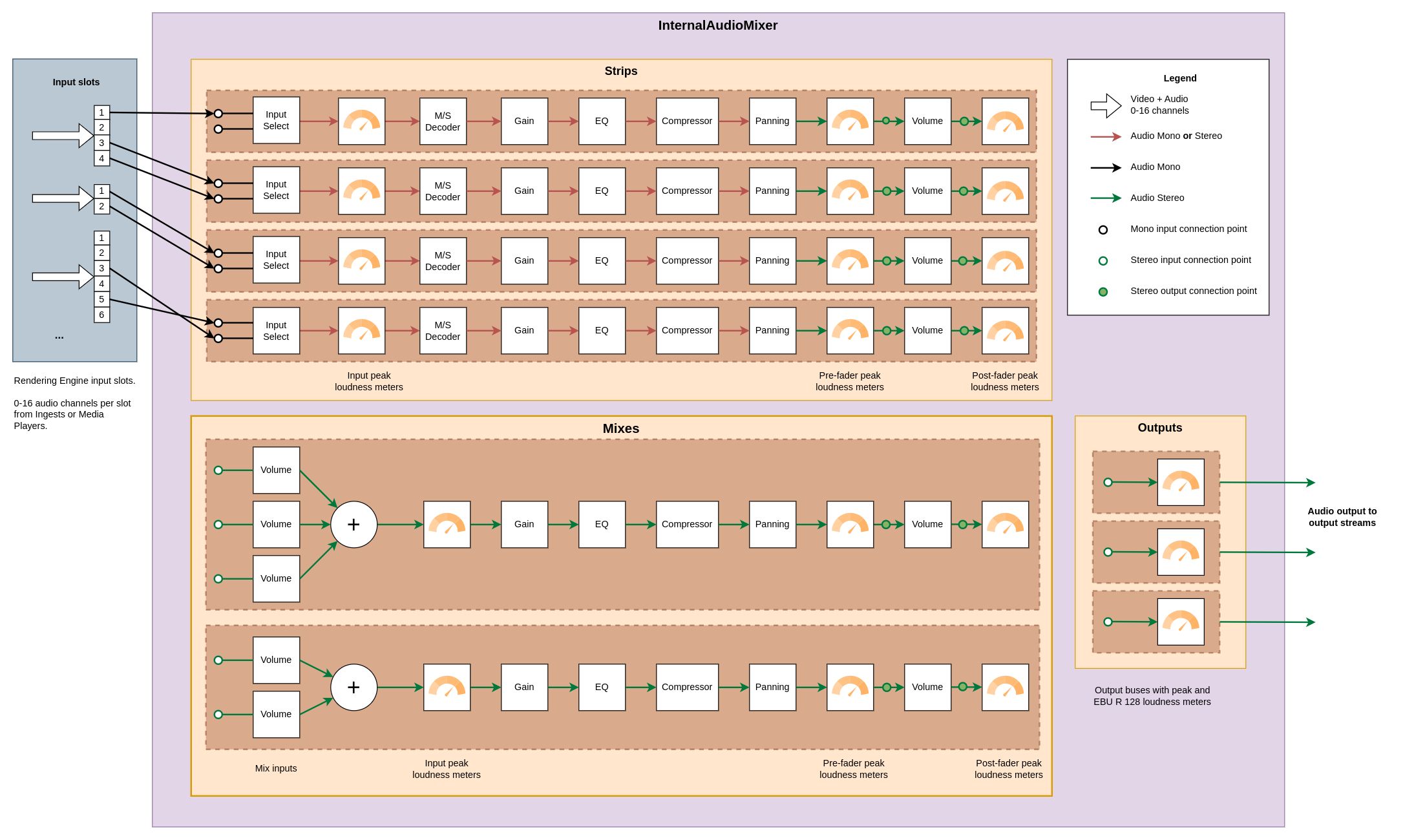
The three main elements of the audio mixer are the Input strips, the Mixes, and the Outputs.
Input strips
Audio enters the audio mixer through the input strips. When a strip has been created, the audio for the strip is selected among the available channels in the Rendering Engine’s input slots.
In the example picture above, three sources are connected to the input slots. The slots have four, two, and six channels respectively. In the illustration we can see that the first strip uses a single channel from the first slot, the second strip uses channel three and four from the second slot and so on. Several input strips may select the same input slot channels.
Each input strip has two stereo output connection points ( ), one
before the volume fader (pre fader) and one after the volume fader (post fader). When a mix or
an output is connected to the output of a strip, which of these two locations to take the audio from
can be selected using the
), one
before the volume fader (pre fader) and one after the volume fader (post fader). When a mix or
an output is connected to the output of a strip, which of these two locations to take the audio from
can be selected using the origin parameter.
Mixes
Mixes are used to combine the output from input strips, or other mixes, and also allows for further
filtering of the audio signal. When a mix has been created, the input strips and other mixes contributing
to the mix can be controlled in the /inputs/strips and /inputs/mixes sections of the mix.
Just like an input strip a mix has two stereo output connection points
() that can be used when connecting the output of the mix to another
mix or an output.
Outputs
Each output corresponds to an audio output in the Rendering Engine configuration. An output takes
audio from a single location, either directly from an input strip or from a mix. In both cases
it can be specified whether to take the audio pre_fader or post_fader.
Note: The audio mixer is completely separate from the video mixer, so switching image in the video mixer will not change the audio mixer in any way.
Audio mixer root
The internal audio mixer consists of input strips (/strips), mixes (/mixes) and output buses (/outputs). The strips are the inputs of the audio mixer, taking audio from the inputs of the Rendering Engine. The mixes mix audio from strips and other mixes. Finally the output buses are the outputs of the audio mixer, taking audio from a single strip or a mix.
resource: /audio
Commands
reset
Reset this audio mixer to its initial state. This will remove all input strips and mixes and reset all outputs.
Command template
{
   "type": "command",
   "resource": "/audio",
   "body": {
       "command": "reset"
   }
}
To reset the audio mixer to the default state, including removal of all configured input strips, use the reset command of the /audio resource.
Input strips
An input strip in the audio mixer, which takes audio from the input slots of the Rendering Engine (/input). Audio is either taken as a mono channel or as a stereo pair. The audio is sent through a filter chain (/filters). After the filter chain the output loudness of the strip is controlled by a main fader. There are peak meters placed before (/pre_fader_meter) and after (/post_fader_meter) the fader, as well as before the filter chain, measuring the raw audio input (/input_meter).
resource: /audio/strips/{strip index}
Parameters
| Name | Type | Access Mode | Default | Description |
|---|---|---|---|---|
| label | string | read-write | A user defined label describing this input strip. |
Example `set` message
In the "resource" path, replace sections enclosed by braces "{}" with the name or id of the resource.
{
    "type": "set",
    "resource": "/audio/strips/{strip index}",
    "body": {
        "label": ""
    }
}
Input strip input configuration
Input settings for a strip.
resource: /audio/strips/{strip index}/input
Parameters
| Name | Type | Access Mode | Default | Description |
|---|---|---|---|---|
| first_channel | uint32 | read-write | 0 | The index of the first audio channel. This is the left channel for stereo. For mid/side stereo, this is the mid channel. The index refers to the channel index in the referenced input_slot. |
| input_slot | uint32 | read-write | 0 | The input slot of the Rendering Engine that audio is taken from. |
| is_stereo | bool | read-write | false | True if the input audio should be treated as stereo, false for mono. For mono only first_channel will be used. For stereo first_channel will be left and second_channel will be right. |
| second_channel | uint32 | read-write | 1 | The index of the second audio channel. This is the right channel for regular stereo and for mid/side stereo, this is the side channel. The index refers to the channel index in the referenced input_slot. Only used in stereo mode. |
Example `set` message
Below is a JSON example that includes all writable parameters for this resource. A `set` message may have a subset of these parameters, so exclude the ones you don't need to set.
In the "resource" path, replace sections enclosed by braces "{}" with the name or id of the resource.
{
    "type": "set",
    "resource": "/audio/strips/{strip index}/input",
    "body": {
        "first_channel": 0,
        "input_slot": 0,
        "is_stereo": false,
        "second_channel": 1
    }
}
Input loudness meter
Peak loudness meter for incoming audio, measured before the filters of this input strip. This meter will either have one streaming parameter called ‘peak’ in case the strip is in mono mode, else two streaming parameters ‘peak_left’ and ‘peak_right’ will replace the ‘peak’ parameter when in stereo mode.
resource: /audio/strips/{strip index}/input_meter
Streaming parameters
| Name | Type | Description |
|---|---|---|
| peak | float | The peak loudness for a mono channel |
Mid side stereo
Filter for controlling the mid and side amount of an audio signal. The input can either be Mid-Side (MS) or Left-Right (LR) stereo. Mono input will be passed through unaltered. If the input is LR, it is converted to MS with the mid channel being the average of the input channels and the side channel being half the difference of the channels. With the signal in MS format the mid and the side amount can be controlled using the mid_amount, side_amount, and invert_polarity parameters.
resource: /audio/strips/{strip index}/filters/mid_side
Parameters
| Name | Type | Access Mode | Default | Description |
|---|---|---|---|---|
| enabled | bool | read-write | false | Set to true to enable this filter. |
| input_format | string | read-write | lr_stereo | The input signal’s format. The available options are: lr_stereo: Input is left-right (LR) stereo ms_stereo: Input is mid-side (MS) stereo Mono input will always be bypassed. |
| invert_polarity | bool | read-write | true | Phase-invert the side channel when applying it to the right channel of the LR output. If input_format is lr_stereo this is usually the right thing to do. If input_format is ms_stereo it is a matter of taste. |
| mid_amount | float | read-write | 1 | The amount of the mid channel to include in the output. Floating point value from 0.0 to 1.0. |
| side_amount | float | read-write | 1 | The amount of the side channel to include in the output. Floating point value from 0.0 to 1.0. |
Example `set` message
Below is a JSON example that includes all writable parameters for this resource. A `set` message may have a subset of these parameters, so exclude the ones you don't need to set.
In the "resource" path, replace sections enclosed by braces "{}" with the name or id of the resource.
{
    "type": "set",
    "resource": "/audio/strips/{strip index}/filters/mid_side",
    "body": {
        "enabled": false,
        "input_format": "lr_stereo",
        "invert_polarity": true,
        "mid_amount": 1.0,
        "side_amount": 1.0
    }
}
Pre-gain
Gain filter
resource: /audio/strips/{strip index}/filters/gain
Parameters
| Name | Type | Access Mode | Default | Description |
|---|---|---|---|---|
| value | float | read-write | 0 | Signal gain in decibels (dB) |
Example `set` message
In the "resource" path, replace sections enclosed by braces "{}" with the name or id of the resource.
{
    "type": "set",
    "resource": "/audio/strips/{strip index}/filters/gain",
    "body": {
        "value": 0.0
    }
}
Parametric equalizer
Equalizer filter
resource: /audio/strips/{strip index}/filters/eq
Commands
reset
Reset this equalizer to its initial state, disabling all bands.
Command template
In the "resource" path, replace sections enclosed by braces "{}" with the name or id of the resource.
{
   "type": "command",
   "resource": "/audio/strips/{strip index}/filters/eq",
   "body": {
       "command": "reset"
   }
}
Parametric equalizer bands
A filter/band in the equalizer
resource: /audio/strips/{strip index}/filters/eq/bands/{band index}
Parameters
| Name | Type | Access Mode | Default | Description |
|---|---|---|---|---|
| freq | float | read-write | 1000 | The center or corner frequency in Hz. For peak, notch, and band_pass filters this is the center frequency. For low_pass, high_pass, low_shelf, and high_shelf filters this is the corner frequency. |
| gain | float | read-write | 0 | The gain in decibels (dB). The gain parameter only has effect on peaking and shelving filters. |
| q | float | read-write | 0.707 | The Q-factor shaping the falloff of the filter. A higher value means a more pointy curve. |
| type | string | read-write | none | The type of this filter. The available types are: none: Bypass audio without any changes low_pass: Low-pass filter at the current frequency. Gain has no effect. high_pass: High-pass filter at the current frequency. Gain has no effect. band_pass: Band-pass filter at the current frequency. Gain has no effect. low_shelf: Low-shelf filter. Audio frequencies below the currently set value are modified by the current gain value. high_shelf: High-shelf filter. Audio frequencies above the currently set value are modified by the current gain value. peak: Peak filter. Frequencies around the currently set value are modified by the current gain value. notch: Notch filter. Frequencies around the currently set value are reduced greatly. |
Example `set` message
Below is a JSON example that includes all writable parameters for this resource. A `set` message may have a subset of these parameters, so exclude the ones you don't need to set.
In the "resource" path, replace sections enclosed by braces "{}" with the name or id of the resource.
{
    "type": "set",
    "resource": "/audio/strips/{strip index}/filters/eq/bands/{band index}",
    "body": {
        "freq": 1000.0,
        "gain": 0.0,
        "q": 0.707,
        "type": "none"
    }
}
Dynamic range compressor
Dynamic range compressor
resource: /audio/strips/{strip index}/filters/compressor
Parameters
| Name | Type | Access Mode | Default | Description |
|---|---|---|---|---|
| attack | float | read-write | 50 | The attack time of the compressor in milliseconds. The attack time determines how long it takes to reach the full compression after the threshold has been exceeded. |
| gain | float | read-write | 0 | The make-up gain in decibels. Since the compression filter lowers the volume of louder audio sections it can be desirable to increase the gain after the filtering. The gain value increases the audio volume with the specified number of decibels. |
| knee | float | read-write | 0 | The width of the soft knee in decibels. Instead of simply turning the compression completely on or off at the threshold, the knee defines a volume range in which the compression ratio follows a curve, the “knee”. |
| ratio | float | read-write | 1 | Maximum compression ratio for audio exceeding the loudness threshold. The value is the numerator in the compression ratio |
| release | float | read-write | 200 | The release time of the compressor in milliseconds. The release time determines how long it takes to return to zero compression when the volume is below the compression threshold. |
| threshold | float | read-write | 0 | The threshold for activation of the compressor in decibels. The volume of audio which is above the threshold value will be reduced (compressed). The default value is 0 dB, i.e. only compression if the audio signal is overloaded. |
Example `set` message
Below is a JSON example that includes all writable parameters for this resource. A `set` message may have a subset of these parameters, so exclude the ones you don't need to set.
In the "resource" path, replace sections enclosed by braces "{}" with the name or id of the resource.
{
    "type": "set",
    "resource": "/audio/strips/{strip index}/filters/compressor",
    "body": {
        "attack": 50.0,
        "gain": 0.0,
        "knee": 0.0,
        "ratio": 1.0,
        "release": 200.0,
        "threshold": 0.0
    }
}
Panning
Panning filter
resource: /audio/strips/{strip index}/filters/pan
Parameters
| Name | Type | Access Mode | Default | Description |
|---|---|---|---|---|
| value | float | read-write | 0 | The panning value in the range -1.0 to 1.0. For example -1.0 means fully panned left, 0.0 means center panned, 1.0 means fully panned right. |
Example `set` message
In the "resource" path, replace sections enclosed by braces "{}" with the name or id of the resource.
{
    "type": "set",
    "resource": "/audio/strips/{strip index}/filters/pan",
    "body": {
        "value": 0.0
    }
}
Pre-fader loudness meter
Peak loudness meter for filtered audio, measured after the filters of this input strip, but before the fader. This meter will always have two streaming parameters called ‘peak_left’ and ‘peak_right’, since the output of the strip is stereo.
resource: /audio/strips/{strip index}/pre_fader_meter
Streaming parameters
| Name | Type | Description |
|---|---|---|
| peak_left | float | The peak loudness for the left stereo channel |
| peak_right | float | The peak loudness for the right stereo channel |
Input strip fader
Volume fader controlling the output loudness of this strip
resource: /audio/strips/{strip index}/fader
Parameters
| Name | Type | Access Mode | Default | Description |
|---|---|---|---|---|
| muted | bool | read-write | false | Set to true if this fader should be muted. This will not affect the volume parameter. |
| volume | float | read-write | 0 | The volume multiplication factor for this fader. For example 0.0 is silence, 1.0 is original volume, values higher than 1.0 amplifies the audio. This is also the current volume during auto transitions. |
Example `set` message
Below is a JSON example that includes all writable parameters for this resource. A `set` message may have a subset of these parameters, so exclude the ones you don't need to set.
In the "resource" path, replace sections enclosed by braces "{}" with the name or id of the resource.
{
    "type": "set",
    "resource": "/audio/strips/{strip index}/fader",
    "body": {
        "muted": false,
        "volume": 0.0
    }
}
Commands
fade
Automatically fade the volume to a given target volume over a period of time.
Parameters
| Name | Type | Required/optional | Description |
|---|---|---|---|
| volume | float | required | The target volume of the fade in a fraction where 0.0 means no volume and 1.0 means original volume. |
| duration_ms | uint32 | required | The duration of the automatic fade in milliseconds. |
Command template
In the "resource" path, replace sections enclosed by braces "{}" with the name or id of the resource.
Replace parameter values, enclosed by "<>", according to their data type.
{
   "type": "command",
   "resource": "/audio/strips/{strip index}/fader",
   "body": {
       "command": "fade",
       "parameters": {
           "volume": <float>,
           "duration_ms": <uint32>
       }
   }
}
Post-fader loudness meter
Peak loudness meter for filtered audio, measured after the fader and after the filters of this input strip. This meter will always have two streaming parameters called ‘peak_left’ and ‘peak_right’, since the output of the strip is stereo.
resource: /audio/strips/{strip index}/post_fader_meter
Streaming parameters
| Name | Type | Description |
|---|---|---|
| peak_left | float | The peak loudness for the left stereo channel |
| peak_right | float | The peak loudness for the right stereo channel |
Mixes
A mix in the audio mixer, which takes audio from selected input strips and possibly other mixes to mix to a single stereo pair. After mixing the inputs (/inputs) of the mix, the audio is sent through a filter chain (/filters), similar to that of an input strip. After the filter chain the output loudness of the mix is controlled by a main fader. The inputs of a mix can either be taken pre- or post-fader from the strips and other mixes included in the mix. There are peak meters placed before (/pre_fader_meter) and after (/post_fader_meter) the fader, as well as before the filter chain, after the inputs has been mixed down to a single stereo pair (/input_meter).
resource: /audio/mixes/{mix index}
Parameters
| Name | Type | Access Mode | Default | Description |
|---|---|---|---|---|
| label | string | read-write | A user defined label describing this mix. |
Example `set` message
In the "resource" path, replace sections enclosed by braces "{}" with the name or id of the resource.
{
    "type": "set",
    "resource": "/audio/mixes/{mix index}",
    "body": {
        "label": ""
    }
}
Mixes inputs
The inputs to this mix.
resource: /audio/mixes/{mix index}/inputs
Mixes inputs from input strips
Volume fader for controlling the contribution of the result of the other mix to this mix
resource: /audio/mixes/{mix index}/inputs/strips/{strip index}
Parameters
| Name | Type | Access Mode | Default | Description |
|---|---|---|---|---|
| muted | bool | read-write | false | Set to true if this fader should be muted. This will not affect the volume parameter. |
| origin | string | read-write | post_fader | Where in the input strip or the mix the audio is taken from, can be either ‘pre_fader’ or ‘post_fader’. |
| volume | float | read-write | 0 | The volume multiplication factor for this fader. For example 0.0 is silence, 1.0 is original volume, values higher than 1.0 amplifies the audio. This is also the current volume during auto transitions. |
Example `set` message
Below is a JSON example that includes all writable parameters for this resource. A `set` message may have a subset of these parameters, so exclude the ones you don't need to set.
In the "resource" path, replace sections enclosed by braces "{}" with the name or id of the resource.
{
    "type": "set",
    "resource": "/audio/mixes/{mix index}/inputs/strips/{strip index}",
    "body": {
        "muted": false,
        "origin": "post_fader",
        "volume": 0.0
    }
}
Commands
fade
Automatically fade the volume to a given target volume over a period of time.
Parameters
| Name | Type | Required/optional | Description |
|---|---|---|---|
| volume | float | required | The target volume of the fade in a fraction where 0.0 means no volume and 1.0 means original volume. |
| duration_ms | uint32 | required | The duration of the automatic fade in milliseconds. |
Command template
In the "resource" path, replace sections enclosed by braces "{}" with the name or id of the resource.
Replace parameter values, enclosed by "<>", according to their data type.
{
   "type": "command",
   "resource": "/audio/mixes/{mix index}/inputs/strips/{strip index}",
   "body": {
       "command": "fade",
       "parameters": {
           "volume": <float>,
           "duration_ms": <uint32>
       }
   }
}
Mixes inputs from other mixes
Volume fader for controlling the contribution of the result of the other mix to this mix
resource: /audio/mixes/{mix index}/inputs/mixes/{mix index}
Parameters
| Name | Type | Access Mode | Default | Description |
|---|---|---|---|---|
| muted | bool | read-write | false | Set to true if this fader should be muted. This will not affect the volume parameter. |
| origin | string | read-write | post_fader | Where in the input strip or the mix the audio is taken from, can be either ‘pre_fader’ or ‘post_fader’. |
| volume | float | read-write | 0 | The volume multiplication factor for this fader. For example 0.0 is silence, 1.0 is original volume, values higher than 1.0 amplifies the audio. This is also the current volume during auto transitions. |
Example `set` message
Below is a JSON example that includes all writable parameters for this resource. A `set` message may have a subset of these parameters, so exclude the ones you don't need to set.
In the "resource" path, replace sections enclosed by braces "{}" with the name or id of the resource.
{
    "type": "set",
    "resource": "/audio/mixes/{mix index}/inputs/mixes/{mix index}",
    "body": {
        "muted": false,
        "origin": "post_fader",
        "volume": 0.0
    }
}
Commands
fade
Automatically fade the volume to a given target volume over a period of time.
Parameters
| Name | Type | Required/optional | Description |
|---|---|---|---|
| volume | float | required | The target volume of the fade in a fraction where 0.0 means no volume and 1.0 means original volume. |
| duration_ms | uint32 | required | The duration of the automatic fade in milliseconds. |
Command template
In the "resource" path, replace sections enclosed by braces "{}" with the name or id of the resource.
Replace parameter values, enclosed by "<>", according to their data type.
{
   "type": "command",
   "resource": "/audio/mixes/{mix index}/inputs/mixes/{mix index}",
   "body": {
       "command": "fade",
       "parameters": {
           "volume": <float>,
           "duration_ms": <uint32>
       }
   }
}
Input loudness meter
Peak loudness meter for incoming audio, measured before the filters of this mix. This meter will always have two streaming parameters ‘peak_left’ and ‘peak_right’, since the input to the mix is always stereo.
resource: /audio/mixes/{mix index}/input_meter
Streaming parameters
| Name | Type | Description |
|---|---|---|
| peak_left | float | The peak loudness for the left stereo channel |
| peak_right | float | The peak loudness for the right stereo channel |
Pre-gain
Gain filter
resource: /audio/mixes/{mix index}/filters/gain
Parameters
| Name | Type | Access Mode | Default | Description |
|---|---|---|---|---|
| value | float | read-write | 0 | Signal gain in decibels (dB) |
Example `set` message
In the "resource" path, replace sections enclosed by braces "{}" with the name or id of the resource.
{
    "type": "set",
    "resource": "/audio/mixes/{mix index}/filters/gain",
    "body": {
        "value": 0.0
    }
}
Parametric equalizer
Equalizer filter
resource: /audio/mixes/{mix index}/filters/eq
Commands
reset
Reset this equalizer to its initial state, disabling all bands.
Command template
In the "resource" path, replace sections enclosed by braces "{}" with the name or id of the resource.
{
   "type": "command",
   "resource": "/audio/mixes/{mix index}/filters/eq",
   "body": {
       "command": "reset"
   }
}
Parametric equalizer bands
A filter/band in the equalizer
resource: /audio/mixes/{mix index}/filters/eq/bands/{band index}
Parameters
| Name | Type | Access Mode | Default | Description |
|---|---|---|---|---|
| freq | float | read-write | 1000 | The center or corner frequency in Hz. For peak, notch, and band_pass filters this is the center frequency. For low_pass, high_pass, low_shelf, and high_shelf filters this is the corner frequency. |
| gain | float | read-write | 0 | The gain in decibels (dB). The gain parameter only has effect on peaking and shelving filters. |
| q | float | read-write | 0.707 | The Q-factor shaping the falloff of the filter. A higher value means a more pointy curve. |
| type | string | read-write | none | The type of this filter. The available types are: none: Bypass audio without any changes low_pass: Low-pass filter at the current frequency. Gain has no effect. high_pass: High-pass filter at the current frequency. Gain has no effect. band_pass: Band-pass filter at the current frequency. Gain has no effect. low_shelf: Low-shelf filter. Audio frequencies below the currently set value are modified by the current gain value. high_shelf: High-shelf filter. Audio frequencies above the currently set value are modified by the current gain value. peak: Peak filter. Frequencies around the currently set value are modified by the current gain value. notch: Notch filter. Frequencies around the currently set value are reduced greatly. |
Example `set` message
Below is a JSON example that includes all writable parameters for this resource. A `set` message may have a subset of these parameters, so exclude the ones you don't need to set.
In the "resource" path, replace sections enclosed by braces "{}" with the name or id of the resource.
{
    "type": "set",
    "resource": "/audio/mixes/{mix index}/filters/eq/bands/{band index}",
    "body": {
        "freq": 1000.0,
        "gain": 0.0,
        "q": 0.707,
        "type": "none"
    }
}
Dynamic range compressor
Dynamic range compressor
resource: /audio/mixes/{mix index}/filters/compressor
Parameters
| Name | Type | Access Mode | Default | Description |
|---|---|---|---|---|
| attack | float | read-write | 50 | The attack time of the compressor in milliseconds. The attack time determines how long it takes to reach the full compression after the threshold has been exceeded. |
| gain | float | read-write | 0 | The make-up gain in decibels. Since the compression filter lowers the volume of louder audio sections it can be desirable to increase the gain after the filtering. The gain value increases the audio volume with the specified number of decibels. |
| knee | float | read-write | 0 | The width of the soft knee in decibels. Instead of simply turning the compression completely on or off at the threshold, the knee defines a volume range in which the compression ratio follows a curve, the “knee”. |
| ratio | float | read-write | 1 | Maximum compression ratio for audio exceeding the loudness threshold. The value is the numerator in the compression ratio |
| release | float | read-write | 200 | The release time of the compressor in milliseconds. The release time determines how long it takes to return to zero compression when the volume is below the compression threshold. |
| threshold | float | read-write | 0 | The threshold for activation of the compressor in decibels. The volume of audio which is above the threshold value will be reduced (compressed). The default value is 0 dB, i.e. only compression if the audio signal is overloaded. |
Example `set` message
Below is a JSON example that includes all writable parameters for this resource. A `set` message may have a subset of these parameters, so exclude the ones you don't need to set.
In the "resource" path, replace sections enclosed by braces "{}" with the name or id of the resource.
{
    "type": "set",
    "resource": "/audio/mixes/{mix index}/filters/compressor",
    "body": {
        "attack": 50.0,
        "gain": 0.0,
        "knee": 0.0,
        "ratio": 1.0,
        "release": 200.0,
        "threshold": 0.0
    }
}
Panning
Panning filter
resource: /audio/mixes/{mix index}/filters/pan
Parameters
| Name | Type | Access Mode | Default | Description |
|---|---|---|---|---|
| value | float | read-write | 0 | The panning value in the range -1.0 to 1.0. For example -1.0 means fully panned left, 0.0 means center panned, 1.0 means fully panned right. |
Example `set` message
In the "resource" path, replace sections enclosed by braces "{}" with the name or id of the resource.
{
    "type": "set",
    "resource": "/audio/mixes/{mix index}/filters/pan",
    "body": {
        "value": 0.0
    }
}
Pre-fader loudness meter
Peak loudness meter for filtered audio, measured after the filters of this mix, but before the fader. This meter will always have two streaming parameters called ‘peak_left’ and ‘peak_right’, since the output of the mix is stereo.
resource: /audio/mixes/{mix index}/pre_fader_meter
Streaming parameters
| Name | Type | Description |
|---|---|---|
| peak_left | float | The peak loudness for the left stereo channel |
| peak_right | float | The peak loudness for the right stereo channel |
Mix output fader
Volume fader controlling the output loudness of this mix
resource: /audio/mixes/{mix index}/fader
Parameters
| Name | Type | Access Mode | Default | Description |
|---|---|---|---|---|
| muted | bool | read-write | false | Set to true if this fader should be muted. This will not affect the volume parameter. |
| volume | float | read-write | 0 | The volume multiplication factor for this fader. For example 0.0 is silence, 1.0 is original volume, values higher than 1.0 amplifies the audio. This is also the current volume during auto transitions. |
Example `set` message
Below is a JSON example that includes all writable parameters for this resource. A `set` message may have a subset of these parameters, so exclude the ones you don't need to set.
In the "resource" path, replace sections enclosed by braces "{}" with the name or id of the resource.
{
    "type": "set",
    "resource": "/audio/mixes/{mix index}/fader",
    "body": {
        "muted": false,
        "volume": 0.0
    }
}
Commands
fade
Automatically fade the volume to a given target volume over a period of time.
Parameters
| Name | Type | Required/optional | Description |
|---|---|---|---|
| volume | float | required | The target volume of the fade in a fraction where 0.0 means no volume and 1.0 means original volume. |
| duration_ms | uint32 | required | The duration of the automatic fade in milliseconds. |
Command template
In the "resource" path, replace sections enclosed by braces "{}" with the name or id of the resource.
Replace parameter values, enclosed by "<>", according to their data type.
{
   "type": "command",
   "resource": "/audio/mixes/{mix index}/fader",
   "body": {
       "command": "fade",
       "parameters": {
           "volume": <float>,
           "duration_ms": <uint32>
       }
   }
}
Post-fader loudness meter
Peak loudness meter for filtered audio, measured after the fader and after the filters of this mix. This meter will always have two streaming parameters called ‘peak_left’ and ‘peak_right’, since the output of the strip is stereo.
resource: /audio/mixes/{mix index}/post_fader_meter
Streaming parameters
| Name | Type | Description |
|---|---|---|
| peak_left | float | The peak loudness for the left stereo channel |
| peak_right | float | The peak loudness for the right stereo channel |
Output bus
Audio mixer output bus to select which input strip or mix should be sent to the output of the audio mixer. The outputs are populated from the Rendering Engine config. Audio from a strip or a mix can be selected for the output. The selected source of this output can either be taken pre- or post-fader from the referenced strip or mix.This makes it possible for outputs meant for pre-listening to listen to a mix or strip without touching its fader. Such outputs can also jump freely between mixes to listen to what is being output from the mixer or strips to listen to the incoming components to tweak the audio filters. The selected audio is fed through a loudness meter.
resource: /audio/outputs/{output name}
Parameters
| Name | Type | Access Mode | Default | Description |
|---|---|---|---|---|
| label | string | read-write | A user defined label describing this output bus. |
Example `set` message
In the "resource" path, replace sections enclosed by braces "{}" with the name or id of the resource.
{
    "type": "set",
    "resource": "/audio/outputs/{output name}",
    "body": {
        "label": ""
    }
}
Output bus input
The source of an output bus.
resource: /audio/outputs/{output name}/input
Parameters
| Name | Type | Access Mode | Default | Description |
|---|---|---|---|---|
| index | uint32 | read-write | 0 | The index of the input strip or mix the audio is taken from. |
| origin | string | read-write | post_fader | Where in the input strip or the mix the audio is taken from, can be either ‘pre_fader’ or ‘post_fader’. |
| source | string | read-write | mix | Where the audio is taken from. Can be either ‘strip’ or ‘mix’. |
Example `set` message
Below is a JSON example that includes all writable parameters for this resource. A `set` message may have a subset of these parameters, so exclude the ones you don't need to set.
In the "resource" path, replace sections enclosed by braces "{}" with the name or id of the resource.
{
    "type": "set",
    "resource": "/audio/outputs/{output name}/input",
    "body": {
        "index": 0,
        "origin": "post_fader",
        "source": "mix"
    }
}
Output bus loudness meter
Loudness meters for the output bus. Used to monitor the loudness of the outgoing audio from the mixer.This meter will always have two streaming parameters called ‘peak_left’ and ‘peak_right’. When the parameter ’enable_ebu_meters’ is set to true, three additional streaming parameters will be available, called ’ebu_m’, ’ebu_s’ and ’ebu_i’, which measure loudness according to the EBU R 128 standard.
resource: /audio/outputs/{output name}/meters
Parameters
| Name | Type | Access Mode | Default | Description |
|---|---|---|---|---|
| enable_ebu_meters | bool | read-write | false | Enable the EBU R 128 Meters. Only enable these for the output where the meters are actually used, as they can be quite resource intensive |
Example `set` message
In the "resource" path, replace sections enclosed by braces "{}" with the name or id of the resource.
{
    "type": "set",
    "resource": "/audio/outputs/{output name}/meters",
    "body": {
        "enable_ebu_meters": false
    }
}
Streaming parameters
| Name | Type | Description |
|---|---|---|
| ebu_i | float | EBU R 128 Integrated loudness with gating. This streaming parameter is only visible when ’enable_ebu_meters’ is set to true |
| ebu_m | float | EBU R 128 Momentary loudness with 400 ms sliding window. This streaming parameter is only visible when ’enable_ebu_meters’ is set to true |
| ebu_s | float | EBU R 128 Short-term loudness with 3000 ms sliding window. This streaming parameter is only visible when ’enable_ebu_meters’ is set to true |
| peak_left | float | The peak loudness for the left stereo channel |
| peak_right | float | The peak loudness for the right stereo channel |
Commands
reset
Reset all the EBU loudness meters, starting over with measuring loudness
Command template
In the "resource" path, replace sections enclosed by braces "{}" with the name or id of the resource.
{
   "type": "command",
   "resource": "/audio/outputs/{output name}/meters",
   "body": {
       "command": "reset"
   }
}
External audio mixing via NDI
The internal audio mixer can be replaced with an external audio mixer, where NDI is used for communicating with the external mixer. To enable the external NDI audio mixer the Rendering Engine application should be started with the environment variable ACL_AUDIO_MIXER set to external_ndi.
The external NDI audio mixer bridge
resource: /ndi_audio
Sending audio to external mixer
All streams to send to the external audio mixer
resource: /ndi_audio/send_streams
Commands
add_stream
Add a new stream for sending channels to the NDI receiver
Parameters
| Name | Type | Required/optional | Description |
|---|---|---|---|
| name | string | required | The name of the NDI stream on the network. Must be unique. |
Command template
Replace parameter values, enclosed by "<>", according to their data type.
{
   "type": "command",
   "resource": "/ndi_audio/send_streams",
   "body": {
       "command": "add_stream",
       "parameters": {
           "name": <string>
       }
   }
}
remove_stream
Remove a stream used for sending channels to the NDI receiver
Parameters
| Name | Type | Required/optional | Description |
|---|---|---|---|
| name | string | required | The name of the NDI stream to remove |
Command template
Replace parameter values, enclosed by "<>", according to their data type.
{
   "type": "command",
   "resource": "/ndi_audio/send_streams",
   "body": {
       "command": "remove_stream",
       "parameters": {
           "name": <string>
       }
   }
}
A stream to send to the external audio mixer
resource: /ndi_audio/send_streams/{send stream index}
Parameters
| Name | Type | Access Mode | Default | Description |
|---|---|---|---|---|
| name | string | read-only | The name of the NDI send stream. The name is set when creating the stream using the add_stream command. |
Commands
disable_channel
Disable a send_channel (0 - 7) for sending audio to the NDI receiver.
Parameters
| Name | Type | Required/optional | Description |
|---|---|---|---|
| index | uint32 | required | The index of the channel to disable |
Command template
In the "resource" path, replace sections enclosed by braces "{}" with the name or id of the resource.
Replace parameter values, enclosed by "<>", according to their data type.
{
   "type": "command",
   "resource": "/ndi_audio/send_streams/{send stream index}",
   "body": {
       "command": "disable_channel",
       "parameters": {
           "index": <uint32>
       }
   }
}
enable_channel
Enable a send_channel (0 - 7) for sending audio to the NDI receiver.
Parameters
| Name | Type | Required/optional | Description |
|---|---|---|---|
| index | uint32 | required | The index of the channel to enable |
| input_slot | uint32 | optional | The input slot to send audio from. |
| channel | uint32 | optional | The index of the channel within the input slot to send audio from |
Command template
In the "resource" path, replace sections enclosed by braces "{}" with the name or id of the resource.
Replace parameter values, enclosed by "<>", according to their data type.
{
   "type": "command",
   "resource": "/ndi_audio/send_streams/{send stream index}",
   "body": {
       "command": "enable_channel",
       "parameters": {
           "index": <uint32>,
           "input_slot": uint32,
           "channel": uint32
       }
   }
}
List of audio channels to send
resource: /ndi_audio/send_streams/{send stream index}/channels
A channel to send to the external audio mixer
resource: /ndi_audio/send_streams/{send stream index}/channels/{channel index}
Parameters
| Name | Type | Access Mode | Default | Description |
|---|---|---|---|---|
| channel | uint32 | read-write | 0 | The index of the channel within the input slot to send audio from |
| input_slot | uint32 | read-write | 0 | The input slot to send audio from |
Example `set` message
Below is a JSON example that includes all writable parameters for this resource. A `set` message may have a subset of these parameters, so exclude the ones you don't need to set.
In the "resource" path, replace sections enclosed by braces "{}" with the name or id of the resource.
{
    "type": "set",
    "resource": "/ndi_audio/send_streams/{send stream index}/channels/{channel index}",
    "body": {
        "channel": 0,
        "input_slot": 0
    }
}
Receiving audio in return from the external mixer
All streams that returns audio from the external audio mixer
resource: /ndi_audio/return_streams
Commands
add_stream
Add a new stream for receiving audio from the external NDI mixer
Parameters
| Name | Type | Required/optional | Description |
|---|---|---|---|
| name | string | required | The name of the NDI stream on the network. Must be unique. |
Command template
Replace parameter values, enclosed by "<>", according to their data type.
{
   "type": "command",
   "resource": "/ndi_audio/return_streams",
   "body": {
       "command": "add_stream",
       "parameters": {
           "name": <string>
       }
   }
}
remove_stream
Remove a stream used for receiving audio from the external NDI mixer
Parameters
| Name | Type | Required/optional | Description |
|---|---|---|---|
| name | string | required | The name of the NDI stream to remove |
Command template
Replace parameter values, enclosed by "<>", according to their data type.
{
   "type": "command",
   "resource": "/ndi_audio/return_streams",
   "body": {
       "command": "remove_stream",
       "parameters": {
           "name": <string>
       }
   }
}
A stream which returns audio from the external audio mixer
resource: /ndi_audio/return_streams/{return stream index}
Parameters
| Name | Type | Access Mode | Default | Description |
|---|---|---|---|---|
| name | string | read-only | The name of the NDI return stream matching the name of an NDI sender on the network. The name is set when creating the stream using the add_stream command. |
Mapping received audio to outputs
All audio outputs from this component
resource: /ndi_audio/outputs
An output from this component consisting of audio from one or more NDI return streams
resource: /ndi_audio/outputs/{output bus}
Parameters
| Name | Type | Access Mode | Default | Description |
|---|---|---|---|---|
| name | string | read-only | main | The name of this output |
The list of channels for one output
resource: /ndi_audio/outputs/{output bus}/channels
An output channel
resource: /ndi_audio/outputs/{output bus}/channels/1
Parameters
| Name | Type | Access Mode | Default | Description |
|---|---|---|---|---|
| return_channel | uint32 | read-write | 0 | The channel to take audio from |
| return_stream | uint32 | read-write | 0 | The return stream to take audio from |
Example `set` message
Below is a JSON example that includes all writable parameters for this resource. A `set` message may have a subset of these parameters, so exclude the ones you don't need to set.
In the "resource" path, replace sections enclosed by braces "{}" with the name or id of the resource.
{
    "type": "set",
    "resource": "/ndi_audio/outputs/{output bus}/channels/1",
    "body": {
        "return_channel": 0,
        "return_stream": 0
    }
}
HTML rendering
The Rendering Engine features a built-in HTML renderer which uses the Chromium web browser engine to render HTML pages. This resource can create and close HTML renderers.
resource: /html
Commands
close
Close the HTML renderer instance connected to the given input slot
Parameters
| Name | Type | Required/optional | Description |
|---|---|---|---|
| input_slot | uint32 | required | The input slot with the HTML browser to close |
Command template
Replace parameter values, enclosed by "<>", according to their data type.
{
   "type": "command",
   "resource": "/html",
   "body": {
       "command": "close",
       "parameters": {
           "input_slot": <uint32>
       }
   }
}
create
Create a new HTML renderer instance with the canvas size of width x height pixels and output the rendered frames to the given input slot, if url is set it will be loaded on startup, otherwise about:blank is loaded.
Parameters
| Name | Type | Required/optional | Description |
|---|---|---|---|
| input_slot | uint32 | required | The input slot to connect the new browser to, cannot be 0 |
| width | uint32 | required | The canvas width of the new browser. The output will be automatically scaled to the rendering engine’s width |
| height | uint32 | required | The canvas width of the new browser. The output will be automatically scaled to the rendering engine’s height |
| url | string | optional | The optional URL to load at creation of the browser |
Command template
Replace parameter values, enclosed by "<>", according to their data type.
{
   "type": "command",
   "resource": "/html",
   "body": {
       "command": "create",
       "parameters": {
           "input_slot": <uint32>,
           "width": <uint32>,
           "height": <uint32>,
           "url": string
       }
   }
}
reset
Close all open HTML renderers
Command template
{
   "type": "command",
   "resource": "/html",
   "body": {
       "command": "reset"
   }
}
HTML renderer
This resource controls an HTML renderer instance and allows loading of new URLs and executing JavaScript snippets.
resource: /html/{input slot}
Parameters
| Name | Type | Access Mode | Default | Description |
|---|---|---|---|---|
| height | uint32 | read-only | 1080 | The height in pixels of this HTML renderer canvas |
| url | string | read-only | Currently loaded URL | |
| width | uint32 | read-only | 1920 | The width in pixels of this HTML renderer canvas |
Commands
execute
Execute JavaScript in this HTML renderer. The JavaScript snippet might span over multiple lines and may contain spaces.
Parameters
| Name | Type | Required/optional | Description |
|---|---|---|---|
| javascript | string | required | The JavaScript snippet to execute in this browser. The snippet might span over multiple lines. |
Command template
In the "resource" path, replace sections enclosed by braces "{}" with the name or id of the resource.
Replace parameter values, enclosed by "<>", according to their data type.
{
   "type": "command",
   "resource": "/html/{input slot}",
   "body": {
       "command": "execute",
       "parameters": {
           "javascript": <string>
       }
   }
}
load
Load a new URL in this HTML renderer
Parameters
| Name | Type | Required/optional | Description |
|---|---|---|---|
| url | string | required | The new URL to load in this browser |
Command template
In the "resource" path, replace sections enclosed by braces "{}" with the name or id of the resource.
Replace parameter values, enclosed by "<>", according to their data type.
{
   "type": "command",
   "resource": "/html/{input slot}",
   "body": {
       "command": "load",
       "parameters": {
           "url": <string>
       }
   }
}
Media players
The Rendering Engine can create media player instances to play video and audio files from the hard drive of the machine running the Rendering Engine. It is up to the user of the API to ensure the files are uploaded to the machines running the Rendering Engine(s) before trying to run them. The media players use the FFmpeg library to demux and decode the media files, so most files supported by FFmpeg should work. This resource can create and close media players.
resource: /media
Commands
close
Close the media player instance connected to the given input slot
Parameters
| Name | Type | Required/optional | Description |
|---|---|---|---|
| input_slot | uint32 | required | The input slot with the media player to close. |
Command template
Replace parameter values, enclosed by "<>", according to their data type.
{
   "type": "command",
   "resource": "/media",
   "body": {
       "command": "close",
       "parameters": {
           "input_slot": <uint32>
       }
   }
}
create
Create a new media player instance and output the rendered frames to the given input slot. If the path is set, it will be loaded at startup
Parameters
| Name | Type | Required/optional | Description |
|---|---|---|---|
| input_slot | uint32 | required | The input slot to connect the new media player to, cannot be 0 |
| path | string | optional | The path of the media file to load into this media player |
Command template
Replace parameter values, enclosed by "<>", according to their data type.
{
   "type": "command",
   "resource": "/media",
   "body": {
       "command": "create",
       "parameters": {
           "input_slot": <uint32>,
           "path": string
       }
   }
}
reset
Close all media players
Command template
{
   "type": "command",
   "resource": "/media",
   "body": {
       "command": "reset"
   }
}
Media player
This resource controls a media player instance. The media players have three parameters that can be set to control if only a portion of the file should be played, and if the playback should loop once it reaches the end. See the section_start_ms, section_duration_ms and loop parameters below.
resource: /media/{input slot}
Parameters
| Name | Type | Access Mode | Default | Description |
|---|---|---|---|---|
| is_playing | bool | read-only | false | Playback state of this media player |
| loop | bool | read-write | false | Controls the looping behavior of the media player. Set to true to loop from the section start once the media playback reaches the end of the section or the end of the file |
| media_duration_ms | int32 | read-only | -1 | The total duration of the currently loaded media file in milliseconds |
| path | string | read-only | The path to the currently loaded media file | |
| section_duration_ms | uint32 | read-write | 4294967295 | Duration in milliseconds of section window, counted from the section start time |
| section_start_ms | uint32 | read-write | 0 | Start time in milliseconds of section window, counted from the beginning of the media file |
Example `set` message
Below is a JSON example that includes all writable parameters for this resource. A `set` message may have a subset of these parameters, so exclude the ones you don't need to set.
In the "resource" path, replace sections enclosed by braces "{}" with the name or id of the resource.
{
    "type": "set",
    "resource": "/media/{input slot}",
    "body": {
        "loop": false,
        "section_duration_ms": 4294967295,
        "section_start_ms": 0
    }
}
Streaming parameters
| Name | Type | Description |
|---|---|---|
| current_time_ms | int32 | Current play time in milliseconds |
| time_left_ms | int32 | Time left in milliseconds |
Commands
load
Load a media file into this media player and pause playback on the first frame. This will also reset the start, duration, section and looping parameters of this media player.
Parameters
| Name | Type | Required/optional | Description |
|---|---|---|---|
| path | string | required | The path to the new media file to load |
Command template
In the "resource" path, replace sections enclosed by braces "{}" with the name or id of the resource.
Replace parameter values, enclosed by "<>", according to their data type.
{
   "type": "command",
   "resource": "/media/{input slot}",
   "body": {
       "command": "load",
       "parameters": {
           "path": <string>
       }
   }
}
pause
Pause the playback in this media player.
Command template
In the "resource" path, replace sections enclosed by braces "{}" with the name or id of the resource.
{
   "type": "command",
   "resource": "/media/{input slot}",
   "body": {
       "command": "pause"
   }
}
play
Start/resume playback in this media player.
Command template
In the "resource" path, replace sections enclosed by braces "{}" with the name or id of the resource.
{
   "type": "command",
   "resource": "/media/{input slot}",
   "body": {
       "command": "play"
   }
}
seek
Seek to a given time point, in milliseconds, from the start of the media file and pause the playback.
Parameters
| Name | Type | Required/optional | Description |
|---|---|---|---|
| time_ms | int32 | required | The time in milliseconds from the beginning of the file to seek to |
Command template
In the "resource" path, replace sections enclosed by braces "{}" with the name or id of the resource.
Replace parameter values, enclosed by "<>", according to their data type.
{
   "type": "command",
   "resource": "/media/{input slot}",
   "body": {
       "command": "seek",
       "parameters": {
           "time_ms": <int32>
       }
   }
}